


The Equipment Register
The Equipment Register is a comprehensive table of all equipment managed for your organisation. From here you can search, filter, view inspection history, download certificates, export data, and (depending on your permissions) manage equipment locations and attachments.
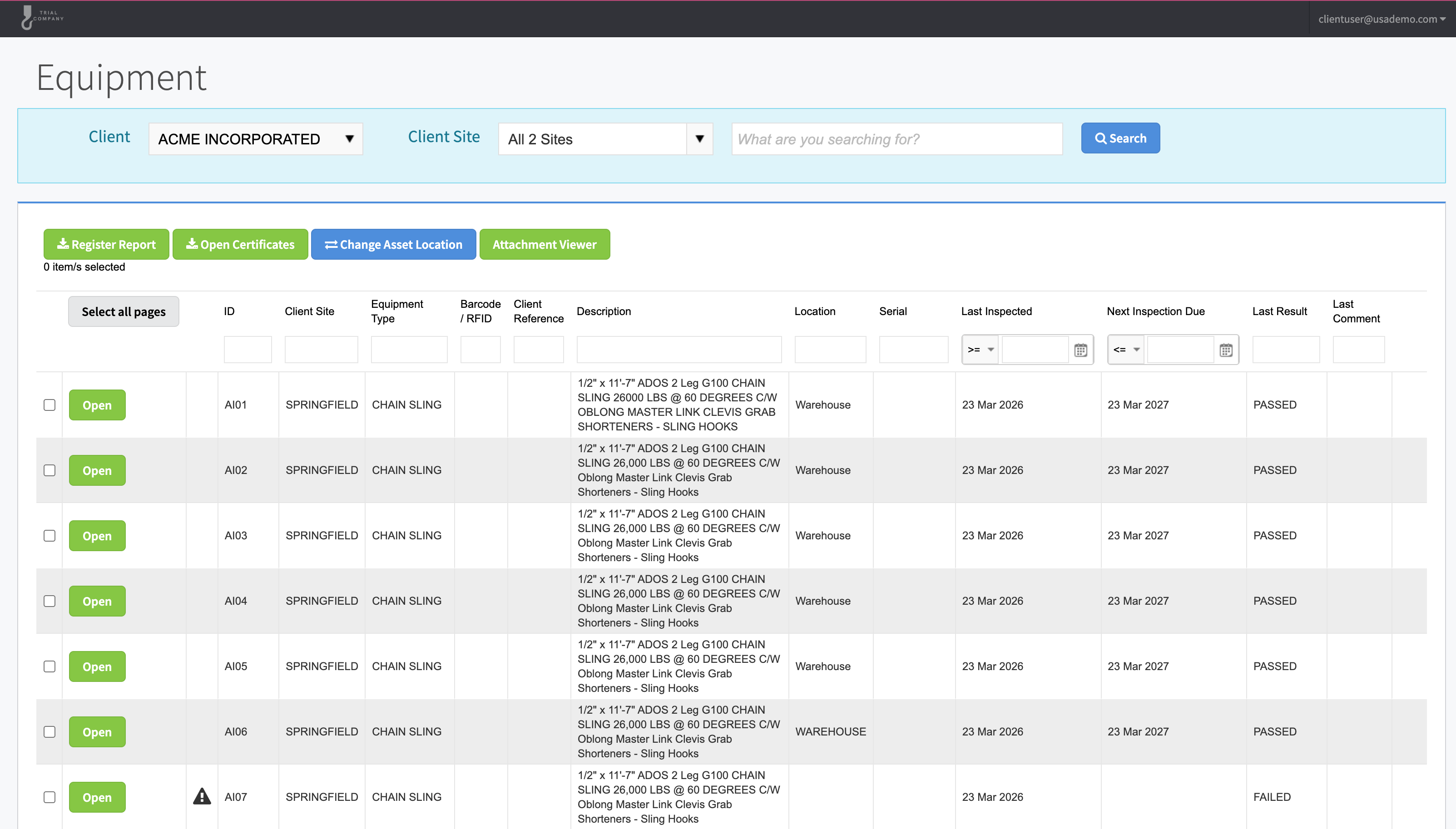
Understanding the Equipment Register
Each row represents a single piece of equipment. The following columns are commonly displayed:
| Column | Description |
|---|---|
| Serial Number | The primary serial number or ID marking of the equipment. |
| Certificate Number | The inspection certificate ID (may not be shown depending on provider settings). |
| Equipment Type | The category of equipment (e.g. Lifting, Electrical, Pressure). |
| Barcode | The equipment's barcode or RFID tag value. |
| Client Reference | Your organisation's internal reference for the equipment. |
| Description | A text description of the equipment. |
| Location | The current physical location of the equipment. |
| Inspection Status / Result | The result of the most recent inspection (e.g. Pass, Fail, Missed). |
| Next Inspection Date | When the equipment is next due for inspection (may be hidden depending on provider settings). |
| Comment | Additional notes about the equipment. |
Note: Your provider may have configured additional custom columns or hidden some of the columns listed above.
Searching and Filtering
The Equipment Register provides several ways to find the equipment you're looking for:
Quick Search
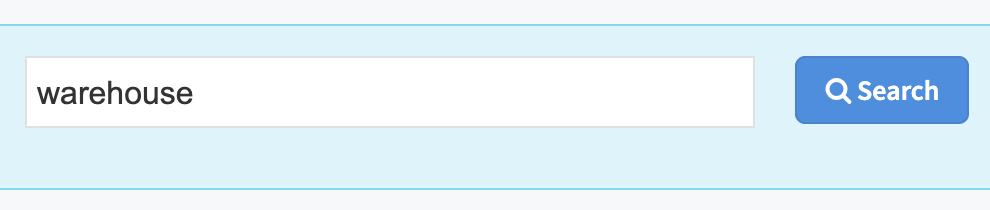
Use the search box to search across all columns. You can search by serial number, ID marking, barcode, RFID, description, equipment type, location, or any other visible field.
Filter Dropdowns
Use the filter dropdowns above the grid to narrow results by:
- Client / Organisation — if you have equipment across multiple organisations
- Location / Client Site — filter to a specific site or location
- Equipment Location — filter by the physical location of equipment on site
- Inspection Status — show only equipment that has Passed, Failed, or been Missed
- Due Date — show all equipment, or only equipment due this month or next month

Column Filters
Each column also has an inline text filter — type into the filter row just below the column headers to filter by that specific column.
Include Archived Equipment
By default, archived (deleted) equipment is hidden. If available, tick the Include Archived Equipment checkbox to show archived items alongside active equipment.
Sorting
Click any column header to sort the register. Click once for ascending order, click again for descending.
Click Clear to reset all filters and return to the full unfiltered view.
Opening Equipment — The Equipment Summary
Click the Open button on any row to view the full Equipment Summary for that item.
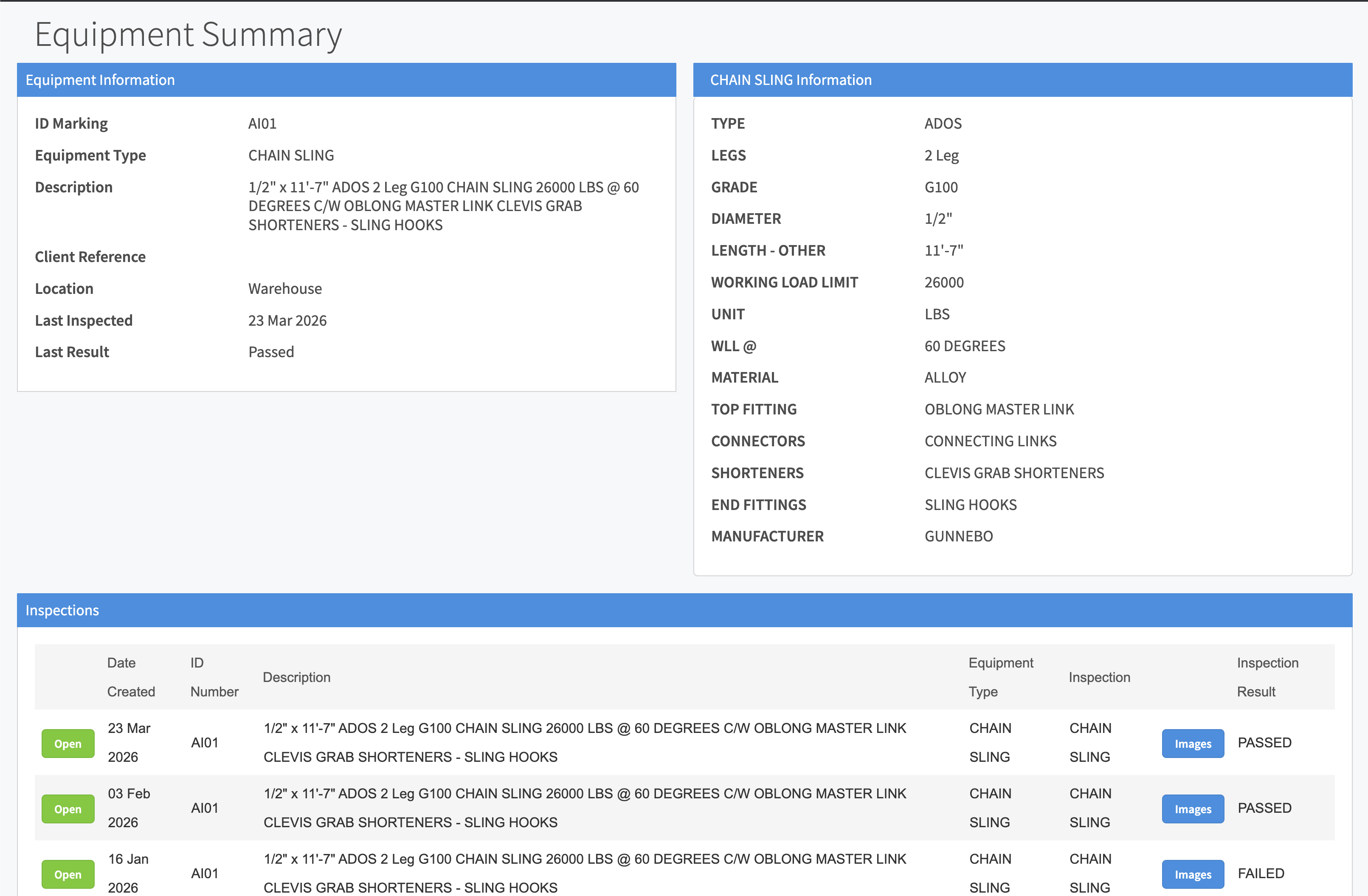
The Equipment Summary shows:
- Equipment details — serial number, description, type, location, make/model, barcode, certificate number, warranty dates, and client reference
- Inspection history— a table of every inspection performed on this equipment, including:
- Inspection date
- Job number
- Inspection type/template
- Result (Pass/Fail/Missed)
- Authorising technician
- Attached files
- Image gallery — inspection photos are displayed as thumbnails. Click a thumbnail to view the full-size image.
Downloading Inspection Photos
To download all photos for an inspection, click the Download Images button (if available). The photos will be packaged as a ZIP file for download.
Viewing and Downloading Certificates
From the Equipment Summary, you can view and download PDF inspection certificates for any inspection in the history. Click on an inspection row to access the certificate.
Viewing Attachments
Any documents or files attached to the equipment or its inspections can be viewed and downloaded from the Equipment Summary page.
Exporting to Excel
If your provider has enabled Excel export for your account:
- Apply any filters you want (the export will include only the filtered results).
- Select equipment using the checkboxes, or use Select All to select everything.
- Click the Excel button.
- The file will download as a CSV/Excel file.
Note: If you don't see the Excel button, this feature has not been enabled for your account. Contact your provider if you need export access.
Downloading Certificates in Bulk
You can download certificates for multiple pieces of equipment at once:
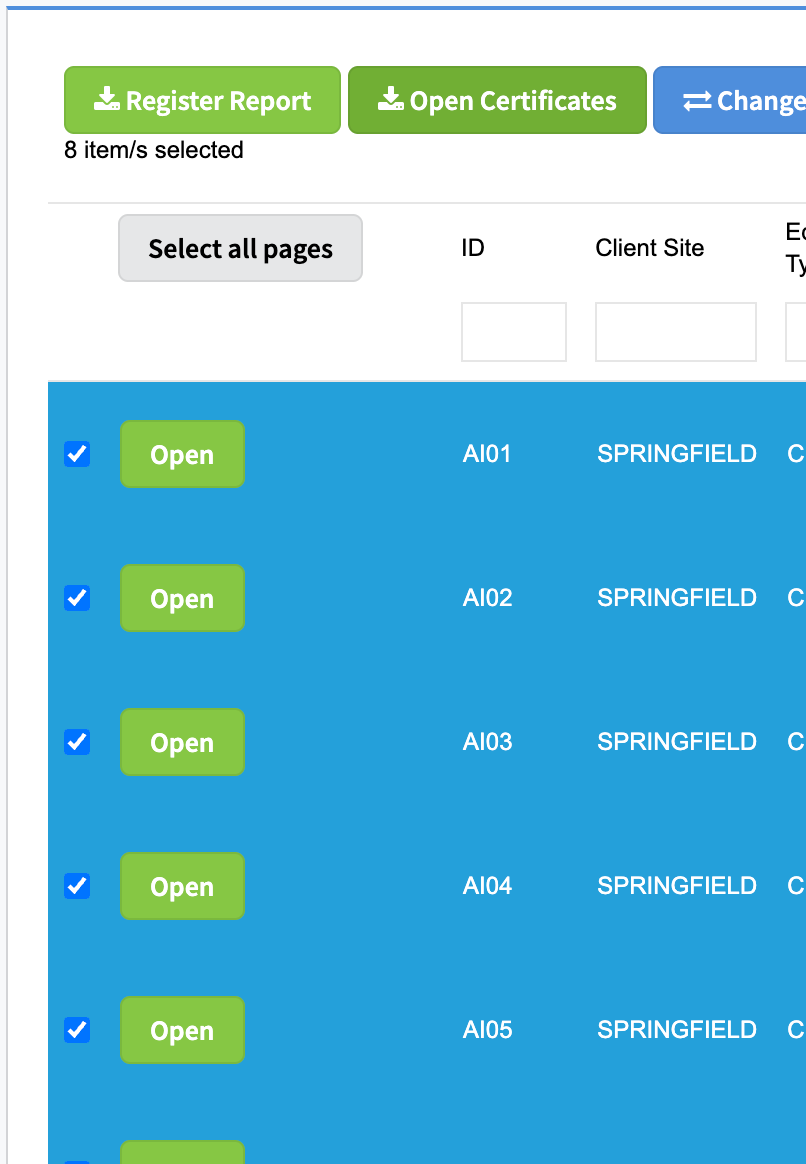
- Select the equipment you want certificates for using the checkboxes. Use Shift-click to select a range, or Ctrl-click (Cmd-click on Mac) to select individual items.
- Click the Open Certificates button to generate and download PDF certificates for all selected items.
Changing Equipment Location
This feature is only available if your provider has enabled it for your account.
If you need to move equipment between locations or client sites:
- Select the equipment you want to move using the checkboxes.
- Click Change Location (or Change Client Site).
- Select the new location from the dropdown.
- Confirm the change.
The equipment's location will be updated immediately in the register.
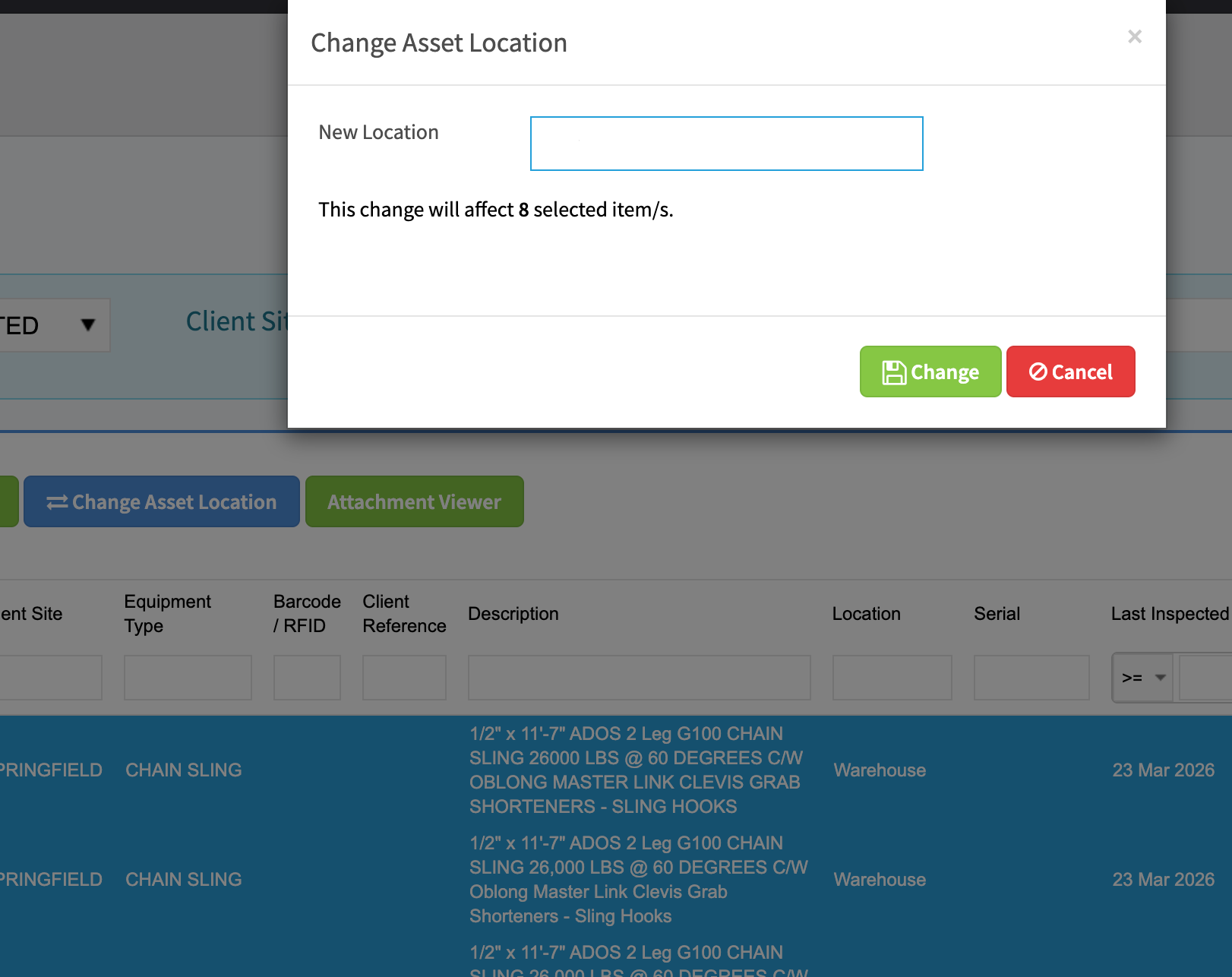
Note: If you don't see the Change Location option, this feature has not been enabled for your account. Contact your provider if you need this capability.
Adding Attachments
This feature is only available if your provider has enabled it for your account.
To add an attachment (document, photo, or file) to a piece of equipment:
- Open the equipment by clicking Open on the Equipment Register.
- Scroll to the Attachments section at the bottom of the Equipment Summary.
- Drag and drop your file into the attachments area, or click to browse for a file.
- The file will upload and appear in the attachments list.
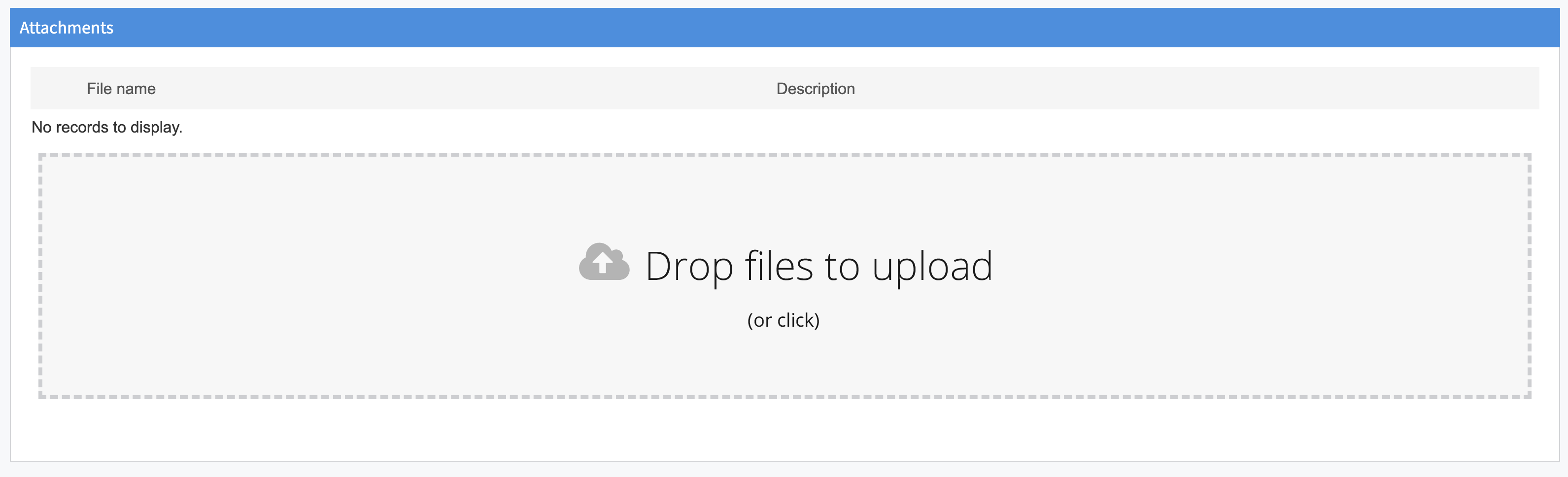
Note: If you don't see the attachments upload area, this feature has not been enabled for your account.
Archiving Equipment
This feature is only available if your provider has enabled it for your account.
If a piece of equipment is no longer in service, you can archive it to remove it from the default view:
- Select the equipment you want to archive.
- Click the Archive option.
- The equipment will be hidden from the default register view.
Archived equipment is not permanently deleted — it can be viewed at any time by ticking the Include Archived Equipment checkbox at the top of the register.